Cacti_install 软件版本: Nginx nginx/1.19.2
安装步骤:
准备环境
部署Lnmp架构
安装cacti到网站根目录并进行配置
安装常用插件
准备环境 系统环境准备:
1
2
3
4
5
6
hostnamectl set-hostname cacti setenforce 0 sed -i "/^SELINUX=/cSELINUX=disabled" /etc/selinux/config systemctl stop firewalld systemctl disable firewalld yum install wget vim -y
yum源准备:
编辑文件vim /etc/yum.repos.d/nginx.repo:
1
2
3
4
5
[nginx] name = nginx repo baseurl = https://nginx.org/packages/mainline/centos/7/$basearch / gpgcheck = 0 enabled = 1
编辑文件vim /etc/yum.repos.d/mariadb.repo:
1 2 3 4 5 6 7 [mariadb] name = MariaDB baseurl = http://yum.mariadb.org/10.4/centos7-amd64 gpgkey=https://yum.mariadb.org/RPM-GPG-KEY-MariaDB gpgcheck=1
php准备:
1
2
rpm -Uvh https://mirrors.cloud.tencent.com/epel/epel-release-latest-7.noarch.rpm rpm -Uvh https://mirror.webtatic.com/yum/el7/webtatic-release.rpm
2-1 部署Nginx 1 2 3 yum install -y nginx systemctl start nginx systemctl enable nginx
Nginx配置测试的的虚拟主机:
将/etc/nginx/conf.d/default.conf中的内容替换为:
1 2 3 4 5 6 7 8 9 10 11 12 13 14 15 16 17 18 19 20 21 22 23 24 25 26 server { listen 80; root /usr/share/nginx/html; server_name localhost; location / { index index.php index.html index.htm; } error_page 500 502 503 504 /50x.html; location = /50x.html { root /usr/share/nginx/html; } location ~ .php$ { fastcgi_pass 127.0.0.1:9000; fastcgi_index index.php; fastcgi_param SCRIPT_FILENAME $document_root$fastcgi_script_name ; include fastcgi_params; } }
2-2 部署Mariadb 1 2 3 yum install -y MariaDB-server MariaDB-client systemctl start mariadb systemctl enable mariadb
配置mariadb:
vim /etc/my.cnf.d/server.conf
1 2 3 4 5 6 7 8 9 10 11 12 13 14 15 16 17 18 19 20 21 22 23 [mysqld] innodb_buffer_pool_size = 1024M innodb_buffer_pool_instances = 9 innodb_large_prefix = 1 innodb_io_capacity_max = 10000 innodb_io_capacity = 5000 innodb_doublewrite = ON join_buffer_size = 200M bind-address = 0.0.0.0 character_set_server=utf8mb4 collation-server=utf8mb4_unicode_ci max_allowed_packet=18M max_heap_table_size=98M tmp_table_size=64M innodb_flush_log_at_timeout=3 innodb_read_io_threads=32 innodb_write_io_threads=16 log-error = /var/log/mysql/mysql-error.log log-queries-not-using-indexes = 1 slow-query-log = 1 slow-query-log-file = /var/log/mysql/mysql-slow.log innodb_file_format = Barracuda
创建cacti用户和cacti数据库:
1 2 3 4 5 6 mysql create database cacti; GRANT ALL PRIVILEGES ON cacti.* TO 'cacti' @'%' IDENTIFIED BY 'cacti' 创建用户并给予权限 GRANT SELECT ON mysql.time_zone_name TO 'cacti' @'%' ; FLUSH PRIVILEGES;
使用可用时区填充时区表:
1 mysql_tzinfo_to_sql /usr/share/zoneinfo | mysql -u root -p mysql
💡 默认安装完mariadb之后没有root密码,所以需要输入密码时回车即可
3-3 部署Php 安装相关软件包:
1 2 3 yum install -y php72w-fpm php72w-process php72w-common \\ php72w-mysqlnd php72w-cli php72w-gd php72w-mbstring php72w-snmp \\ php72w-pdo mod_php72w php72w-ldap
编辑php的主配置文件:
1 2 3 4 5 6 vim /etc/php.ini date.timezone = Asia/Shanghai cgi.fix_pathinfo=0 memory_limit = 400M max_execution_time = 60 date.timezone = Asia/Shanghai
启动php-fpm:
1 2 systemctl start php-fpm systemctl enable php-fpm
测试一下lnmp环境: 创建测试文件:
vim /usr/share/nginx/html/test.php:
1 2 3 4 5 <?php $link =mysqli_connect("localhost" ,"cacti" ,"cacti" );if (!$link ) echo "FAILD!连接错误,用户名密码不对" ;else echo "OK!可以连接" ;?>
重启mariadb和nginx:
1 2 systemctl restart nginx systemctl restart mariadb
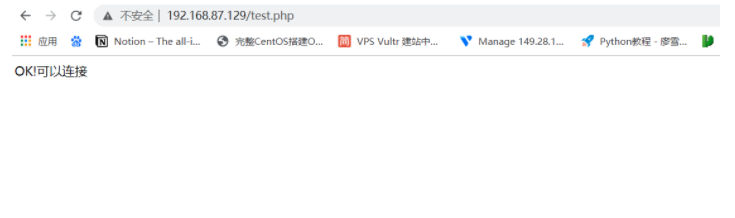
浏览器访问出现以下界面即为正常:
部署cacti并进行配置: 下载cacti安装包:
1 2 3 4 5 6 7 8 9 10 11 12 13 14 15 16 wget https://www.cacti.net/downloads/cacti-1.2.14.tar.gz mv cacti-1.2.14.tar.gz /usr/share/nginx/html/cacti chown -R nginx.nginx /usr/share/nginx/html/cacti/resource/snmp_queries/chown -R nginx.nginx /usr/share/nginx/html/cacti/resource/script_server/chown -R nginx.nginx /usr/share/nginx/html/cacti/resource/script_queries/chown -R nginx.nginx /usr/share/nginx/html/cacti/scripts/chown -R nginx.nginx /usr/share/nginx/html/cacti/log/chown -R nginx.nginx /usr/share/nginx/html/cacti/cache/boost/chown -R nginx.nginx /usr/share/nginx/html/cacti/cache/mibcache/chown -R nginx.nginx /usr/share/nginx/html/cacti/cache/realtime/chown -R nginx.nginx /usr/share/nginx/html/cacti/cache/spikekill/touch /usr/share/nginx/html/cacti/log/cacti.logchmod 777 /usr/share/nginx/html/cacti/log/cacti.log
创建cacti的虚拟主机:
1 2 3 4 5 6 7 8 9 10 11 12 13 14 15 16 17 18 19 20 21 22 23 24 25 26 27 28 29 30 31 32 33 34 35 36 37 38 39 40 41 42 43 44 45 46 47 48 49 50 51 52 53 54 55 56 57 58 59 60 61 62 63 64 65 66 67 68 69 70 71 72 73 74 75 76 77 78 79 80 81 82 83 84 85 rm -rf /etc/nginx/conf.d/default.conf vim /etc/nginx/conf.d/cacti.conf add_header X-XSS-Protection "1; mode=block" ; add_header X-Content-Type-Options nosniff; server { listen 80; server_name cacti.yourdomain.com; root /usr/share/nginx/html/cacti; index index.php index.html index.htm; gzip on; gzip_types text/plain text/html text/xml text/css application/xml application/javascript application/x-javascript application/rss+xml applicaiton/xhtml+xml; gzip_proxied no-cache no-store private expired auth; gzip_min_length 1000; location / { try_files $uri $uri / /index.php$query_string ; } error_page 404 /404.html; error_page 500 502 503 504 /50x.html; location = /50x.html { root /usr/share/nginx/html/; } location ~ \\.php$ { alias /usr/share/nginx/html/cacti; index index.php try_files $uri $uri / =404; fastcgi_split_path_info ^(.+\\.php)(/.+)$; fastcgi_pass 127.0.0.1:9000; fastcgi_index index.php; fastcgi_param SCRIPT_FILENAME $document_root$fastcgi_script_name ; include /etc/nginx/fastcgi_params; } location /cacti { root /usr/share/nginx/html/; index index.php index.html index.htm; location ~ ^/cacti/(.+\\.php)$ { try_files $uri =404; root /usr/share/nginx/html; fastcgi_pass 127.0.0.1:9000; fastcgi_index index.php; fastcgi_param SCRIPT_FILENAME $document_root$fastcgi_script_name ; include /etc/nginx/fastcgi_params; } location ~* ^/cacti/(.+\\.(jpg|jpeg|gif|css|png|js|ico|html|xml|txt))$ { expires max; log_not_found off; } } location /doc/ { alias /usr/share/nginx/html/cacti/doc/; location ~* ^/docs/(.+\\.(html|md|txt))$ { root /usr/share/nginx/html/cacti/; autoindex on; allow 127.0.0.1; allow ::1; deny all; } } location /cacti/rra/ { deny all; } access_log /var/log/nginx/cacti_access.log; error_log /var/log/nginx/cacti_error.log info; }
导入cacti数据库:
1 mysql -uroot -p cacti</usr/share/nginx/html/cacti/cacti.sql
配置php-fpm:
vim /etc/php-fpm.d/www.con 修改以下字段,带有;是注释,取消即可
1 2 3 4 listen.owner = nginx listen.group = nginx user = nginx group = nginx
权限设置:
1 chmod 777 /var/lib/php/session
计划任务设置:
vim /etc/cron.d/cacti,加入如下配置:
1 */1 * * * * nginx php /usr/share/nginx/html/cacti/poller.php &>/dev/null
安装rrdtool以及snmp:
1 2 3 4 5 6 7 yum install -y rrdtool yum install -y net-snmp net-snmp-utils echo "rocommunity public" > /etc/snmp/snmpd.confsystemctl enable snmpd systemctl start snmpd
编辑cacti的配置文件:
vim /usr/share/nginx/html/cacti/include/config.php
1 2 3 4 5 6 7 8 9 10 11 $database_type = 'mysql' ;$database_default = 'cacti' ;$database_hostname = 'localhost' ;$database_username = 'cacti' ;$database_password = 'cacti' ;$database_port = '3306' ;$database_retries = 5;$database_ssl = false ;$database_ssl_key = '' ;$database_ssl_cert = '' ;$database_ssl_ca = '' ;
浏览器访问开始进行部署:
http://本机ip/cacti/
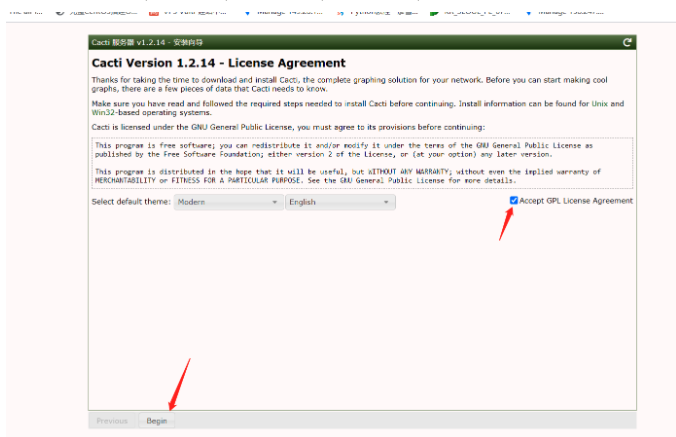
modern是默认主题,可以更改,语言不用改,勾上对勾后,点击开始即可开始安装
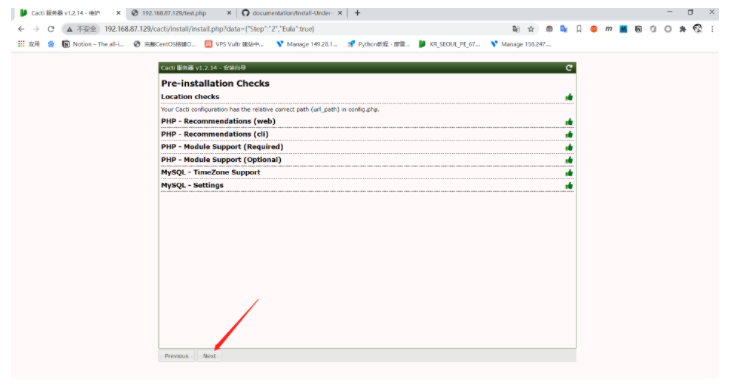
这是cacti的部署环境检查,如下图,所有的配置检测都通过了,点击next即可:
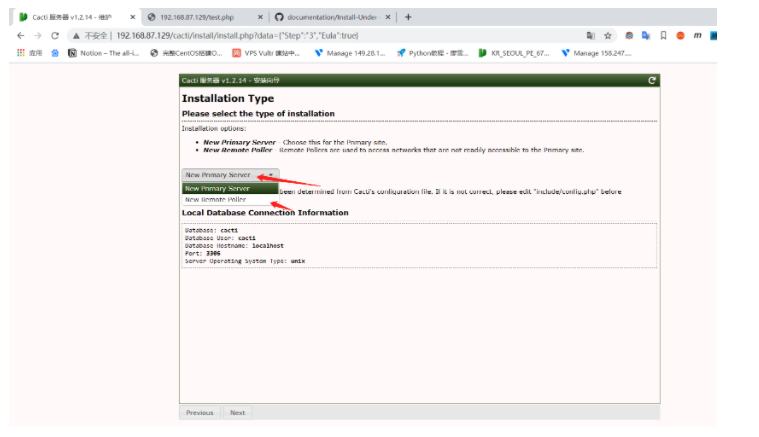
这一步选择是主节点部署,还是代理部署,选择主节点部署即可:
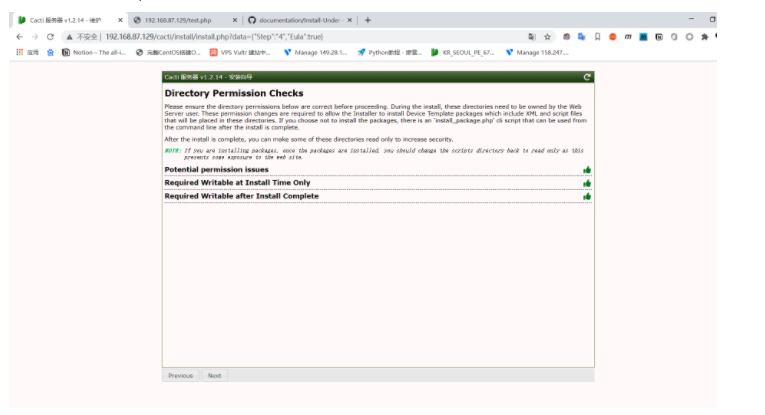
这一步是权限检测,:
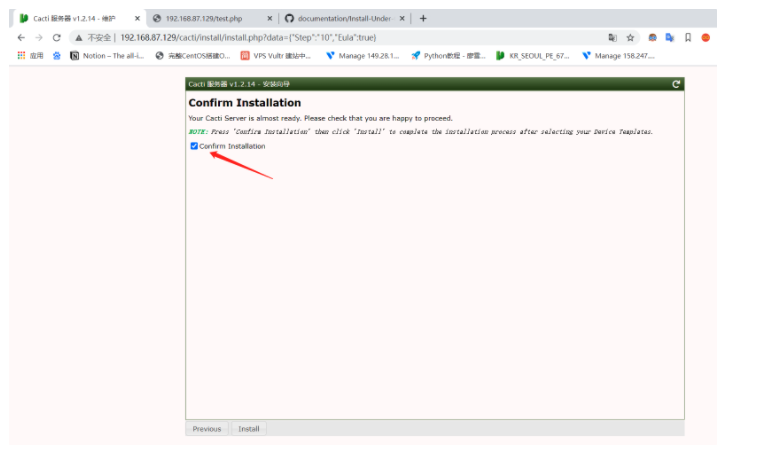
其余步骤就点击next继续即可,到了这个界面之后将对勾点上,即可开始安装:
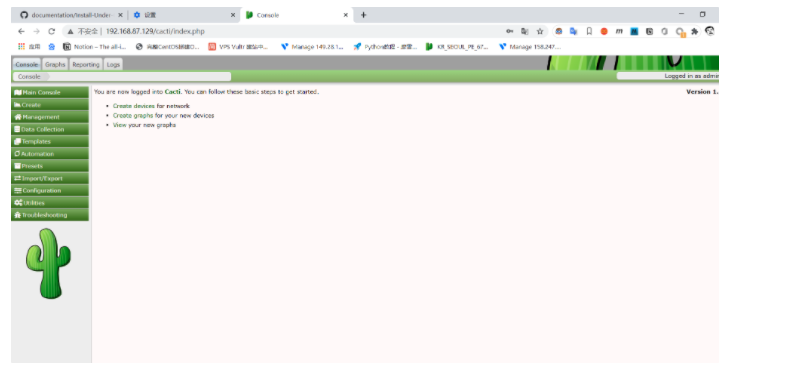
安装完成后将浏览器缓存清空以下或者换个浏览器再访问即可:
cacti的插件部署: Spine插件部署: 此插件用于为cacti进行加速
安装相关的软件包
1 2 yum install -y autoconf automake libtool dos2unix help2man \\ openssl-devel mariadb-devel net-snmp-devel gcc gcc-c++
下载插件包
1 2 3 4 5 6 7 8 9 10 wget <https://www.cacti.net/downloads/spine/cacti-spine-1.2.14.tar.gz> tar xf cacti-spine-1.2.14.tar.gz cd cacti-spine-1.2.14 ./bootstrap ./configure make make install config/install-sh -c -d '/usr/local/spine/bin' /bin/sh ./libtool --mode=install /usr/bin/install -c spine '/usr/local/spine/bin'
编辑spine的配置文件
1 mv -v /usr/local/spine/etc/spine.conf.dist /usr/local/spine/etc/spine.conf
修改以下参数
1 2 3 4 5 DB_Host localhost DB_Database cacti DB_User cacti DB_Pass cacti DB_Port 3306
部署完成~
部署其他常用插件: cd /usr/share/nginx/html/cacti/plugins 开始部署插件
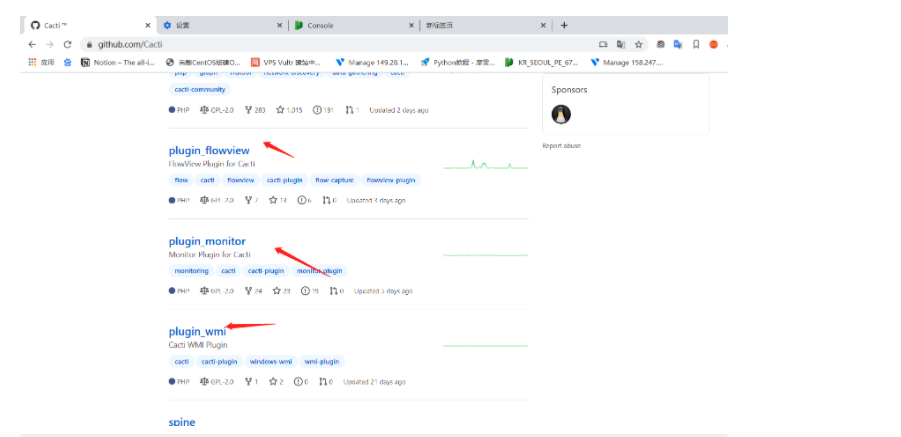
插件的获取:
Cacti ™
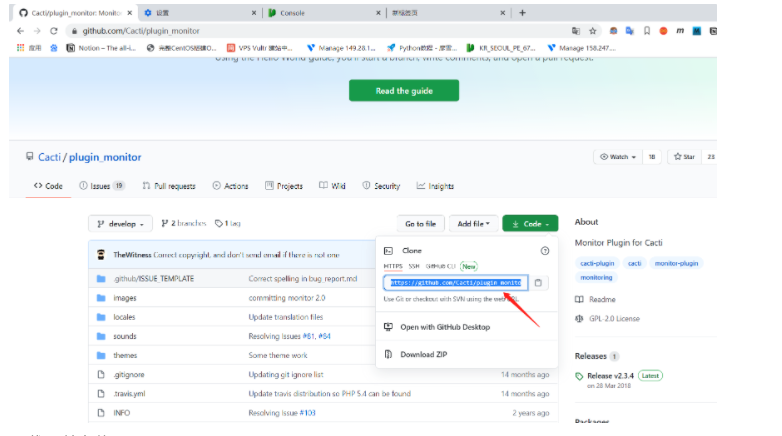
比如我要获取monitor这个插件:
点进去,这个就是下载连接,可以直接下载压缩包到本地,也可以使用git下载,这里使用git下载:
下载git并安装:
1 2 3 yum install -y git git clone <https://github.com/Cacti/plugin_monitor.git> mv plugin_monitor/ monitor
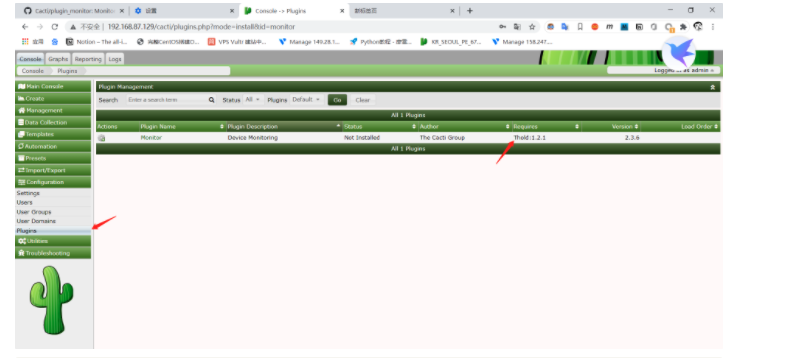
此时进入cacti的web节点,按照下图点击,就可以看到这个插件,不过此时还无法安装启用,他告诉我们这个插件依赖于thold,于是我们需要将这个插件也下载下来
1 2 git clone <https://github.com/Cacti/plugin_thold.git> mv mv plugin_thold/ thold
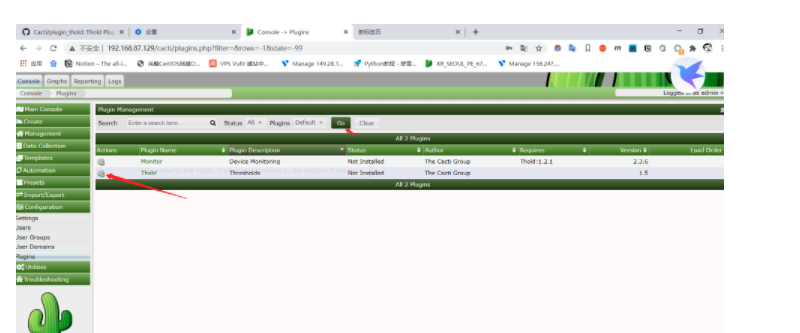
好了,我们在点击安装下插件:
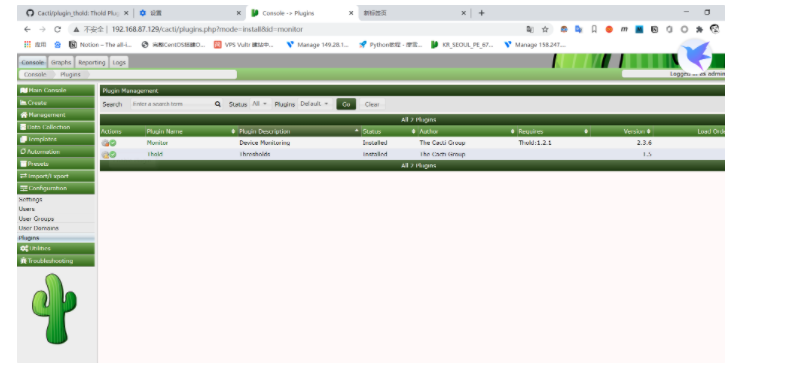
点击这个齿轮就可以安装启用了,如下图,我们把这俩插件都启用了:
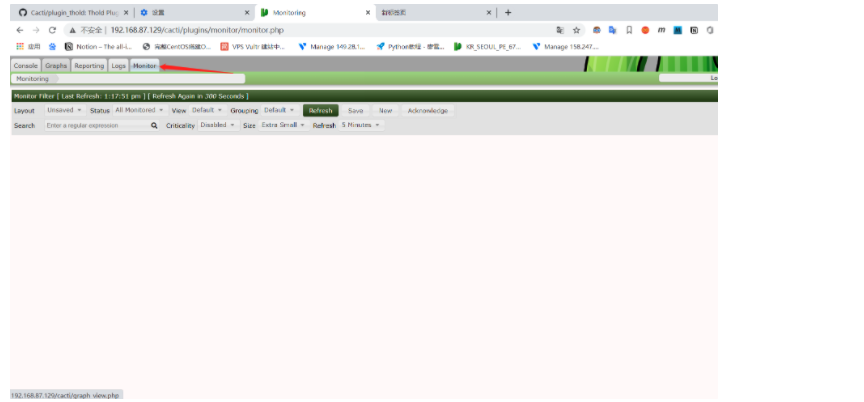
刷新下页面,就可以看到monitor这个插件了:
其他的插件也是这样的下载方法